Key Takeaways
A 503 Service Unavailable error means your server is temporarily unable to handle a request, not that your website is broken for good.
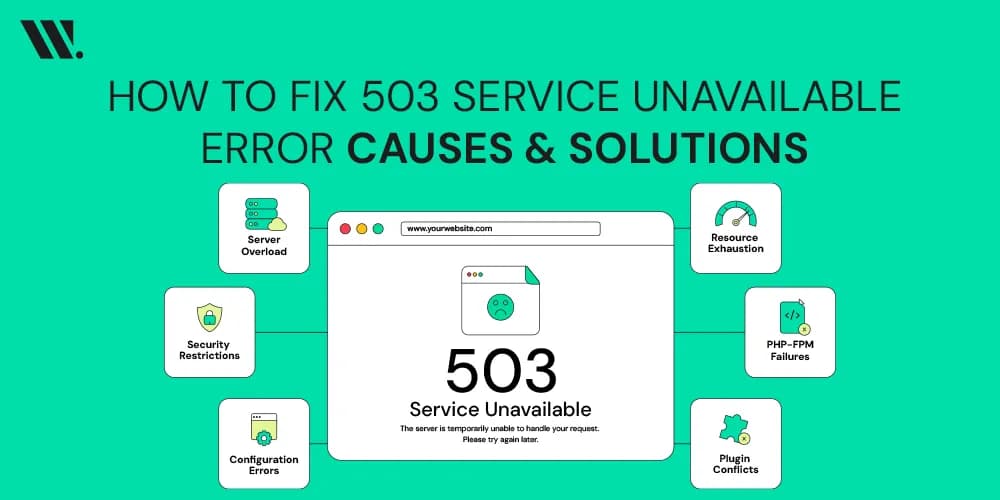
Common triggers include traffic spikes, scheduled maintenance, exhausted resources, PHP-FPM failures, misconfigured firewalls, DDoS attacks, and faulty WordPress plugins.
Visitors can usually fix it by refreshing, waiting a few minutes, or clearing browser cache.
Website owners should check server logs, resource usage, and PHP-FPM before contacting their hosting provider.
Short, occasional 503 errors carry little SEO risk, but errors lasting days can lead to de-indexing
One message. Three numbers. Hundreds of frustrated visitors. That is the impact an HTTP 503 service unavailable error can have when it appears at the wrong time. It is like walking up to a store during business hours only to find a "Back in 5 Minutes" sign on the door. According to the IETF HTTP Semantics specification, a 503 status means the server is temporarily unable to handle requests, usually because it is overloaded or undergoing maintenance. In this guide, I will explain what causes the error, how to fix it, and how to help prevent it from happening again.
What is the 503 Service Unavailable Error?
A 503 Service Unavailable error is an HTTP status code your server sends when it's online but can't handle the request right now. MDN describes it as the server's way of saying it isn't ready to respond.
Here's what usually comes with it:
The server itself is running; only request handling is paused
It falls under Server Error (5xx), never a browser or connection problem on your end
Most 503 errors are temporary and resolve within minutes
The page may show a simple error, a custom message, or your host's maintenance screen

Common Variations of the 503 Error
Different servers and hosts word this error a bit differently, but they all point to the same underlying issue. I recommend paying attention to the exact wording, since it often hints at the cause.

Why It Happens
At its core, a 503 shows up when your web server, whether that's Apache, NGINX, or LiteSpeed, gets more requests than it can process, or when something behind it, like PHP-FPM or a database, stops responding. Shared web hosting environments run into this more often, since resources are split among many accounts on one physical server. Scheduled maintenance and software updates trigger it on purpose too. In short, it's your server's way of saying "give me a moment," not a sign the website is permanently down.

What Causes a 503 Service Unavailable Error?
A 503 error can have several causes. Finding the exact reason is important because the fix depends on what is happening inside the server environment.
Server Overload
When traffic exceeds what your server or hosting plan can handle, incoming requests are dropped or queued, and visitors start seeing 503 errors.
Common signs:
High CPU usage
High RAM usage
Too many concurrent connections
Scheduled Server Maintenance
Hosting providers or administrators may temporarily stop services during updates, security patches, or infrastructure upgrades.
Common signs:
Planned maintenance window
Temporary service interruption
Automatic update process
Resource Limits (CPU, RAM, Disk)
Many hosting plans have limits on available resources. Once these limits are reached, websites may stop responding properly.
Common signs:
CPU throttling
Memory exhaustion
Disk usage limits reached
PHP-FPM or Application Failure
PHP-FPM manages how your server processes PHP scripts. If its worker processes crash or run out, dynamic pages stop loading entirely.
Common signs:
PHP process failures
Worker pool exhaustion
Application timeout errors
Misconfigured Firewall or CDN
A firewall rule or CDN setting that's too aggressive can block legitimate traffic between your reverse proxy and the origin server, triggering a 503.
Common signs:
Blocked requests
Incorrect security rules
CDN routing problems
DDoS Attack
A distributed denial-of-service attack floods your server with fake traffic on purpose, exhausting resources until real visitors can't get through.
Common signs:
Sudden traffic spikes
Network saturation
Large numbers of suspicious requests
Faulty Plugins or Themes (WordPress)
A poorly coded plugin or theme can eat up server memory or conflict with PHP-FPM, causing WordPress sites to return 503 errors randomly.
Common signs:
Errors after updates
Increased resource usage
Website instability
How to Fix 503 Service Unavailable Error (For Website Visitors)?
If you are visiting a website and encounter a 503 error, you usually have limited control over the server. Still, several quick checks can help determine whether the issue is local or server-related.
Refresh the Webpage
Press F5 or click reload. A large share of 503 errors are momentary traffic increases that clear up within seconds of a fresh request.
Wait and Try Again Later
Give the server a few minutes, especially if maintenance or a traffic surge looks likely. Most 503 errors resolve within fifteen to thirty minutes.
Restart Your Browser
Closing and reopening your browser clears temporary session data and stuck connections that sometimes keep showing 503 even after the server recovers.
Clear Browser Cache
Your browser may hold onto a cached error page from before the server came back. Clearing cache and cookies forces a fresh request.
Flush DNS Cache
Outdated DNS records stored on your device can point you to an old server address. Flushing DNS clears that record and fixes the route.
Disable VPN or Proxy
Some VPNs and proxies route traffic through servers that get blocked or rate-limited. Turning it off briefly helps confirm if that's the cause.
Check Website Status
Tools like Downdetector or IsItDownRightNow show if the site is down for everyone or only for you, saving time before trying anything else.
How to Fix 503 Service Unavailable Error (For Website Owners)?
Website owners have access to server configurations and diagnostic tools. Start with the server itself and work outward through applications and network services.
Check Server Resource Usage
Log into your hosting control panel, cPanel or Plesk, and check CPU, RAM, and disk usage. A maxed-out resource almost always points to overload.
Review Error Logs
Your web server logs, including Apache, NGINX, or LiteSpeed, record the exact moment and reason behind each 503, which narrows down troubleshooting fast.
Restart Apache, NGINX, or LiteSpeed
A simple service restart clears stuck processes and hung connections. Most hosting control panels let you do this with a single click.
Restart PHP-FPM
If dynamic pages are failing, restarting the PHP-FPM service refreshes its worker pool and often resolves errors tied to exhausted processes.
Disable Problematic Plugins
Deactivate recently updated or newly added plugins one at a time on WordPress sites to isolate which one is overloading PHP-FPM or memory.
Check Database Connectivity
A database that's unreachable, locked, or overloaded stops dynamic pages from loading. Test the connection and look for long-running queries.
Increase PHP Memory Limit
Raising the memory_limit value in php.ini or wp-config.php gives PHP-FPM more room to process requests without hitting a hard resource wall.
Verify Firewall Rules
Review your firewall or WAF settings to confirm they aren't blocking legitimate traffic between your reverse proxy, load balancer, and origin server.
Review CDN Configuration
Check your CDN, especially Varnish Cache or similar setups, for caching rules or backend fetch settings that might be misrouting requests.
Scan for Malware
Malicious scripts can quietly drain server resources or corrupt files. Run a full malware scan to rule out infection as the root cause.
Contact Your Hosting Provider
If nothing on your end resolves it, reach out to your host's support team. They can check server-level issues you simply can't see.
How to Prevent 503 Service Unavailable Errors?
Fixing a 503 error once is fine, but preventing repeat outages saves time, traffic, and reputation. I recommend building these habits into your routine.
Monitor Server Performance: Track CPU, RAM, and disk usage regularly to catch resource strain before it turns into downtime.
Enable Website Caching: Caching reduces how often your server processes repeat requests, easing pressure during traffic spikes.
Upgrade Your Hosting Plan: Moving from shared web hosting to VPS hosting or dedicated server hosting adds resource headroom for high-performance hosting needs.
Implement Load Balancing: A load balancer spreads traffic across multiple servers, so no single one gets overwhelmed.
Schedule Maintenance Properly: Plan updates during low-traffic hours and return a proper 503 with a Retry-After header.
Optimize Database Performance: Clean up unused tables, add indexes, and optimize queries to keep response times fast.
Keep Software Updated: Outdated plugins, themes, and server software carry bugs and security gaps that often cause outages.
Set Up Uptime Monitoring: Tools that alert you the moment your site goes down let you react before visitors notice.
Shared Hosting vs VPS vs Dedicated Hosting
Hosting type plays a major role in how often resource-related 503 errors occur. Before choosing a hosting environment, it helps to understand the strengths and limitations of each option.
Hosting Type | Advantages | Disadvantages | Best For |
Low cost, simple management | Shared resources, limited performance | Small websites | |
Dedicated resources, better control | Requires more management | Growing websites | |
Scalability, redundancy | Variable costs | Traffic fluctuations | |
Maximum performance, full control | Higher cost | Large websites | |
Expert maintenance and support | Less customization | Business websites |
If your website frequently experiences traffic fluctuations, I recommend moving beyond basic Shared Hosting and considering high-performance hosting, VPS Hosting, Cloud Hosting, or a Dedicated Server.
503 Error vs Other HTTP Errors
A 503 error often gets mixed up with other server-side codes, but each one points to a different problem. Here's how they compare, so you know which fix applies:
Error | Meaning | Common Cause |
500 Internal Server Error | Generic server issue | Application failure |
Invalid upstream response | Reverse proxy problem | |
503 Service Unavailable | Server temporarily unavailable | Maintenance or overload |
504 Gateway Timeout | Upstream server timeout | Slow backend server |
429 Too Many Requests | Client sent too many requests | Rate limiting triggered |
Difference Between Temporary and Permanent Server Errors
Temporary server errors, like a well-configured 503, tell browsers and search engines the issue will pass. Google's own crawling guidance confirms that brief 503 windows carry little to no SEO risk, while extended ones slow down crawling. Permanent errors, such as a 500 with no recovery plan, suggest something is structurally broken. The gap matters because search engines treat a short outage very differently from one that drags on for days.
Conclusion
An HTTP 503 Service Unavailable error can be frustrating, but it is usually one of the more manageable server issues. In most cases, the problem comes down to maintenance, resource limits, application failures, or unexpected traffic levels.
The best approach is to identify the source quickly, review your logs, and address the issues before it affects visitors and search engines. If you manage websites regularly, I recommend monitoring resource usage, keeping software updated, and choosing hosting that matches your traffic needs.
If you are struggling to find the cause of recurring 503 errors, the team at Websouls can assist with server reviews, hosting assessments, and troubleshooting guidance. Sometimes a second set of experienced eyes can save hours of investigation and help restore stable website performance.
FAQs for 503 Service Unavailable Error
Is a 503 error temporary?
Yes, in most cases. A 503 usually clears up once the server recovers from overload, maintenance, or a resource spike, often within minutes.
Can a 503 error affect SEO?
Short, occasional 503s cause little harm. Google has said a 503 lasting under a day generally won't affect rankings, but repeated or long outages can slow crawling and lead to pages dropping from the index.
How long does a 503 error last?
Most resolve within a few minutes to a few hours. Anything stretching past a day usually points to a deeper server or configuration issue.
Can WordPress cause a 503 error?
Yes. A conflicting plugin, a broken theme update, or PHP-FPM running out of workers are common WordPress-specific causes.
Does clearing cache fix a 503 error?
Sometimes. If your browser cached an old error page, clearing it helps. But if the server itself is still struggling, cache clearing alone won't fix the root problem.
How do I know if my hosting is causing the issue?
Check your resource usage in cPanel or Plesk and review server logs. If usage is maxed out often, it's a sign your current shared web hosting or dedicated server hosting plan may need an upgrade.