Key Takeaways
A virtual private server gives you dedicated resources, root access, and full control, something shared hosting simply cannot offer.
Ubuntu 22.04 LTS is the most beginner-friendly Linux server choice right now, with long-term support running through April 2027.
SSH keys, firewall setup, and automatic updates are not optional extras; do them before anything else.
A properly configured VPS can host websites, applications, databases, email servers, game servers, development environments, and more.
Most VPS problems come from skipped security steps, outdated software, or no backup plan.
Following a clear VPS hosting setup guide makes the whole process much more manageable, even for first-time users.
One wrong command can lock you out of your VPS.
That is where many beginners get stuck. You buy a server, get an IP address and login details, open the terminal, and suddenly have no idea what comes next.
Should you log in as root? Set up a firewall first? Install Apache or Nginx? Connect your domain now or later?
Most VPS setup guides jump straight into commands. Miss one step, and you can end up with security issues, broken configuration, or hours of troubleshooting. VPS setup becomes much easier when you follow the right order.
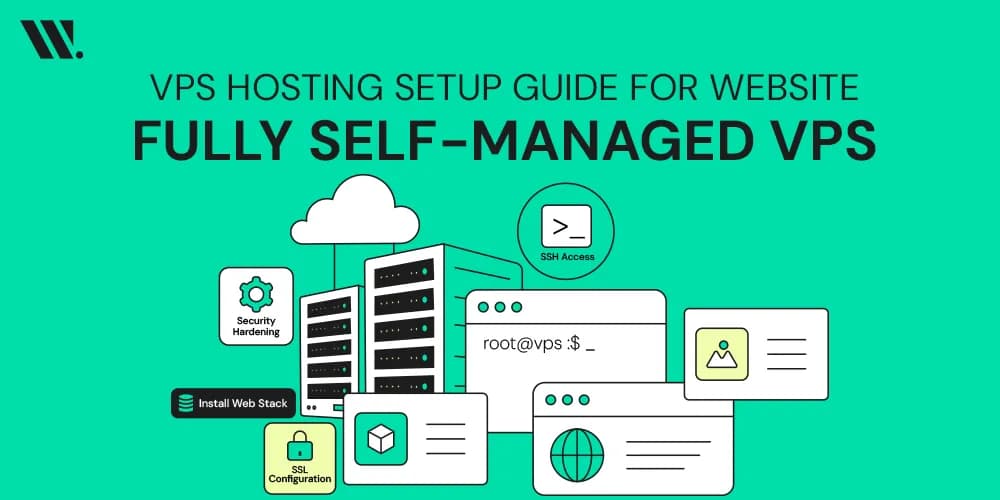
In this VPS hosting setup guide, I will show you exactly what to do, from choosing a plan and connecting through SSH to securing the server, installing your web stack, connecting a domain, and going live.
What is a Virtual Private Server?
A Virtual Private Server (VPS) is a virtual machine running on a physical server. A Hypervisor divides that server into multiple isolated environments, each with its own CPU, RAM, storage, and operating system.
Each VPS runs independently, even though the hardware is shared. To better understand what is a VPS in simple terms, think of it like an apartment building: the building is shared, but each unit has its own private space and resources.
Unlike shared hosting, where many websites use the same pool of resources, a VPS gives you a dedicated allocation. It sits between shared hosting and a dedicated server, offering a balance of cost, control, and performance.
What You'll Need Before You Start
A bit of preparation makes everything smoother. Before touching a single command, get the following sorted.
A VPS plan from a provider that gives you root access and lets you choose your operating system. More on this in Step 1.
An operating system choice - Ubuntu 22.04 LTS is what I recommend for most people. It is well-documented, actively maintained, and widely supported. Debian is another great pick. AlmaLinux is a good choice if you are coming from a CentOS background (CentOS has reached end-of-life, so avoid it for new setups). Windows Server is available if your application specifically requires it, but it is heavier to manage and costs more.
An SSH client - on macOS and Linux, your built-in terminal works fine. On Windows, use PuTTY or Windows Terminal.
A domain name - if you plan to host a website, register one before you begin so DNS propagation can start while you work on the server.
FileZilla or any SFTP client - for transferring files securely to your server later. SFTP (Secure File Transfer Protocol) is the secure standard for file transfers over SSH.
DNS management access - usually through your domain registrar's dashboard.
Basic comfort with a terminal - you do not need to be an expert. If you can paste a command and press Enter, you are ready.
VPS Hosting Setup: Step-by-Step

The overall VPS initialization process follows this sequence:
Choose and purchase a VPS plan
Connect to your server through SSH
Create a sudo user
Update the system
Configure the firewall with UFW
Install your web hosting stack
Connect your domain and enable HTTPS
Let's go through each one.
Step 1: Choose and Purchase Your VPS Plan
The right plan depends on what you intend to run. Do not over-buy. A 1-2 vCPU plan with 2GB of RAM handles a typical WordPress site or small web application without any issues. You can always scale up later.
When reviewing plans, pay attention to:
Server region/data center location - pick one closest to your audience. If your visitors are mostly in Europe, do not put your server in the US. Latency adds up and affects site speed.
Operating system options - choose Ubuntu 22.04 LTS during VPS provisioning. Most providers let you select this when creating the instance.
Storage type - SSD storage loads significantly faster than traditional hard drives. Most modern VPS plans use SSD by default, but it's worth confirming.
Managed vs. unmanaged - managed VPS means the provider handles updates and monitoring. Unmanaged means full control is yours.
Backup options - check whether automatic backups are included or available as an add-on. You want this.
Bandwidth - match this to your expected traffic. A personal blog needs very little. A media site or game server needs more.
Once you complete the purchase and VPS provisioning finishes, your provider will send the server's IP address and root credentials by email.
Add our VPS plans image here
Step 2: Connect to Your Server Through SSH
SSH (Secure Shell) is the standard way to access a Linux server remotely. Open your terminal and run:
ssh root@your-server-ip
Replace your-server-ip with the actual IP address from your provider. The first time you connect, you will be asked to verify the server fingerprint; type yes. Then enter your root password.
Password-based login works, but I strongly recommend switching to SSH keys as soon as possible. SSH keys are far harder to brute-force and are the standard in any professional environment. Generate a key pair on your local machine:
ssh-keygen -t ed25519
Then upload the public key to your server:
ssh-copy-id root@your-server-ip
Test that key-based login works, then disable password authentication later once you have your sudo user set up (covered in the security section).
Step 3: Create a Sudo User
Running everything as root is risky. A single wrong command with root access can damage your entire server. The better approach is to create a regular user with sudo privileges for day-to-day work.
adduser your-username
usermod -aG sudo your-username
Switch to that user and use it going forward:
su - your-username
This is a simple access control step that prevents a lot of accidental damage.
Step 4: Update the System
Your freshly provisioned VPS is running a base operating system that likely has not been updated since the image was built. Pull the latest packages before installing anything.
For Ubuntu 22.04 and Debian:
sudo apt update && sudo apt upgrade -y
For AlmaLinux:
sudo dnf update -y
Once done, enable automatic security updates so patches apply in the background. On Ubuntu/Debian, the unattended-upgrades package handles this:
sudo apt install unattended-upgrades -y
sudo dpkg-reconfigure --priority=low unattended-upgrades
This is one of the steps people most often skip, and it is one of the main reasons servers get compromised months down the line. Keeping the system updated through your package manager (apt or dnf) is basic maintenance, not optional.
Step 5: Configure the Firewall with UFW
UFW (Uncomplicated Firewall) is the default firewall tool on Ubuntu and Debian. It sits on top of iptables and makes firewall management much more approachable.
Before enabling the firewall, always allow SSH first. Skipping this step locks you out of your own server instantly:
sudo ufw allow OpenSSH
Then set default rules and enable the firewall:
sudo ufw default deny incoming
sudo ufw default allow outgoing
sudo ufw allow 80/tcp
sudo ufw allow 443/tcp
sudo ufw enable
This blocks all incoming traffic by default, then opens ports for SSH (22), HTTP (80), and HTTPS (443). If you are installing cPanel and WHM, you will also need port 2087:
sudo ufw allow 2087/tcp
Check your current rules at any time:
sudo ufw status verbose
I suggest opening only the ports tied to services you are actively running. Every extra open port is a potential entry point; keep the list short.
Step 6: Install Your Web Hosting Stack
What you install here depends on what you are hosting. The two most common setups are a LAMP stack and an Nginx-based stack.
LAMP Stack (Linux, Apache, MySQL/MariaDB, PHP)
LAMP is the go-to for WordPress, PHP applications, and most traditional web projects.
Install Apache:
sudo apt install apache2 -y
Install MariaDB:
sudo apt install mariadb-server -y
sudo mysql_secure_installation
Run the security script immediately after installation; it removes test databases, disables remote root login, and sets a root password.
Install PHP:
sudo apt install php libapache2-mod-php php-mysql -y
On MariaDB vs MySQL: both are reliable and widely supported. MariaDB is fully open source, actively maintained, and compatible with MySQL workloads. I recommend MariaDB for new setups.
Nginx Stack
Nginx handles concurrent connections more efficiently than Apache, especially on smaller servers or under heavy load. For modern web applications, Node.js backends, or high-traffic sites, Nginx is often the better pick.
Install Nginx:
sudo apt install nginx -y
Many administrators pair Nginx with PHP-FPM and MariaDB, commonly referred to as a LEMP stack for efficient resource usage.
Optional: cPanel and WHM
If you prefer managing the server through a graphical interface rather than the command line, cPanel and Web Host Manager (WHM) simplify a lot of common tasks, website management, email accounts, DNS configuration, database management, and backup scheduling.
WHM is accessed through:
https://your-server-ip:2087
cPanel/WHM is a paid product with a licensing cost, so factor that in when planning your setup. It is popular among hosting resellers and agencies managing multiple client sites.
Step 7: Connect Your Domain and Enable HTTPS
Once the web server is running, point your domain to your server through DNS management, usually in your registrar's dashboard.
Add an A record for your domain:
Type | Host | Value |
A | @ | your-server-ip |
A | www | your-server-ip |
DNS propagation, the process of your updated records spreading across networks globally, typically takes between a few minutes and a couple of hours, sometimes longer. Check progress at whatsmydns.net.
I recommend completing DNS updates only after the web server is fully configured and running. Pointing your domain before the server is ready means visitors will encounter errors during setup.
Once DNS resolves, install SSL with Let's Encrypt and Certbot:
For Apache:
sudo apt install certbot python3-certbot-apache -y
sudo certbot --apache
For Nginx:
sudo apt install certbot python3-certbot-nginx -y
sudo certbot --nginx
Certbot handles the certificate request, installation, and sets up automatic renewal. HTTPS is not optional anymore; browsers flag HTTP sites with security warnings, and search engines factor it into rankings.
How to Secure Your VPS After Setup
Getting online is one thing. Staying secure is the ongoing part. Do all of this before your server goes public.
Disable root login and password authentication. Once SSH keys and your sudo user are working, edit the SSH configuration:
sudo nano /etc/ssh/sshd_config
Set these lines:
PermitRootLogin no
PasswordAuthentication no
Restart SSH to apply:
sudo systemctl restart sshd
Install Fail2Ban. This tool watches your log files for repeated failed login attempts and automatically bans the offending IP addresses through your firewall. A freshly deployed VPS typically sees SSH brute-force attempts within minutes of going live.
sudo apt install fail2ban -y
sudo systemctl enable --now fail2ban
By default, Fail2Ban bans an IP for 10 minutes after 5 failed SSH login attempts. You can adjust this in /etc/fail2ban/jail.local to be more aggressive if needed.
Keep firewall rules current. Regularly review your active rules and remove exceptions for services you no longer run:
sudo ufw status numbered
sudo ufw delete [rule-number]
Take server snapshots. Most VPS providers offer snapshot and backup features; use them. Take a snapshot before any major change. Restoring from a snapshot takes a few minutes. Rebuilding from scratch takes hours.
Verify Certbot auto-renewal works. Let's Encrypt certificates expire every 90 days. Certbot sets up a renewal cron job automatically, but it is worth confirming:
sudo certbot renew --dry-run
Read also: How VPS Hosting Security Features Keep Your Server Protected →
What Can You Host on a VPS?

This is where a VPS really shows its value over shared hosting. You are not limited to what the provider allows; you can install and run almost anything.
Common use cases include business websites, WordPress blogs, ecommerce stores, web applications (Node.js, Django, Laravel, Ruby on Rails), API services, email servers, game servers, VPN servers, development and staging environments, database servers, and self-hosted file storage platforms like Nextcloud.
One VPS can handle multiple projects at once. The limit is your allocated RAM, CPU, and storage, not artificial restrictions from a shared plan.
Common Mistakes to Avoid
Most VPS problems are preventable. Here is what to watch for.
Enabling the firewall before allowing SSH - you will lock yourself out instantly. Always run sudo ufw allow OpenSSH first.
Running everything as root - create a sudo user and make that your default login. Root access should be a last resort.
Skipping system updates - an outdated server is an exposed server. Update on day one and keep automatic updates enabled.
Using password-based SSH - switch to SSH key authentication. If you must keep passwords, use a strong one and install Fail2Ban immediately.
Opening unnecessary ports - every unused open port is a potential attack surface. Keep your firewall rules lean.
Skipping backups - take a snapshot before any major change. The one time you skip it is usually when you need it most.
Pointing your domain before the server is ready - set up your web server and SSL first, then update DNS. Otherwise, visitors see errors during your configuration process.
Forgetting to test Certbot renewal - a lapsed SSL certificate kills HTTPS for all your visitors. Run a dry-run after install to confirm it works.
Choosing a server region far from your audience - pick a data center close to where your visitors are actually located.
Read Also: Common VPS Hosting Issues and How to Fix Them
Final Thoughts
Setting up a VPS is one of those things that seems overwhelming right up until it clicks, and then it feels like something you should have done sooner. The control, the performance, the freedom to install exactly what you need, it is a genuinely different experience from shared hosting.
Start with a clean OS installation, secure access immediately, keep the server updated, and maintain regular backups. These four habits will save you from the vast majority of problems new VPS users run into.
At Websouls, we work with people at every stage, from someone setting up their first server to teams managing multiple production environments. If you run into issues with SSH access, firewall configuration, DNS, SSL, or anything else along the way, we are happy to help. Sometimes a bit of guidance saves hours of troubleshooting.
FAQs for VPS Hosting Setup Guide
How long does it take to set up a VPS from scratch?
For someone following a guide for the first time, a basic VPS setup including OS configuration, firewall, web server, and SSL typically takes between 1 and 3 hours. Experienced admins can get a clean server production-ready in under 30 minutes.
Do I need coding knowledge to manage a VPS?
No coding knowledge is required. You do need comfort with basic command-line tasks: running commands, editing files with a text editor like nano, and navigating directories. These are learnable skills, not programming.
Can I switch my operating system after VPS setup?
Yes, most VPS providers let you reinstall the OS through their control panel. Keep in mind that this wipes everything on the server, so you would start fresh. Always take a snapshot or full backup before doing this.
What happens if I get locked out of my VPS?
Most providers offer an emergency console or VNC access through their dashboard that bypasses SSH entirely. This lets you get back in even if SSH is misconfigured or the firewall is blocking your connection.
Is a VPS the same as a cloud server?
Not exactly. A VPS typically runs on a single physical machine with fixed allocated resources. A cloud server spans multiple machines and can scale resources dynamically. The setup process is similar, but cloud infrastructure is generally more flexible and has higher availability by design.
Can I run a VPS without a domain name?
Yes. You can access your server and everything hosted on it directly through its IP address. A domain is only necessary if you want a human-readable URL and SSL certificates tied to a domain name.
How do I move an existing website from shared hosting to a VPS?
The general process involves setting up the VPS first, transferring files via SFTP, migrating the database, updating configuration files, and then switching the domain DNS to point to the new server. DNS propagation handles the cutover without significant downtime if planned properly.