

You moved from shared hosting to a VPS because you wanted more control, better performance, and your own dedicated resources. Smart move. But now your server is throwing errors, SSH won't connect, or the site is loading slower than it did before the upgrade. Here's the thing: VPS hosting is powerful, but it does come with some things you have to learn the hard way that nobody warns you about at checkout.
The better side is that most VPS problems follow a pattern, so once you understand them, you can find and fix them on your own. This guide covers the ones that actually show up, from slow performance to getting locked out, with practical steps to handle them.
What is a VPS, and Why Does It Break?
A Virtual Private Server is a virtualized environment carved out of a physical server using a hypervisor like KVM or OpenVZ. You get your own dedicated portion of CPU, RAM, and disk, root access, and the freedom to install and configure whatever you want. Unlike shared hosting, where you share a pool of resources with dozens of other sites, your VPS allocation is yours.
That isolation is the strength of VPS hosting. It's also why things break in ways shared hosting never would, because you're responsible for the configuration, the software, and the maintenance. Understanding that upfront saves a lot of frustration later.
The Most Common VPS Server Issues and How to Fix Them
Most server issues in VPS hosting are not random. They usually fall into clear groups like performance, network, security, or configuration problems. Below is a practical VPS hosting troubleshooting guide with common issues and simple steps to fix them.
1. Slow VPS Performance and High CPU Usage
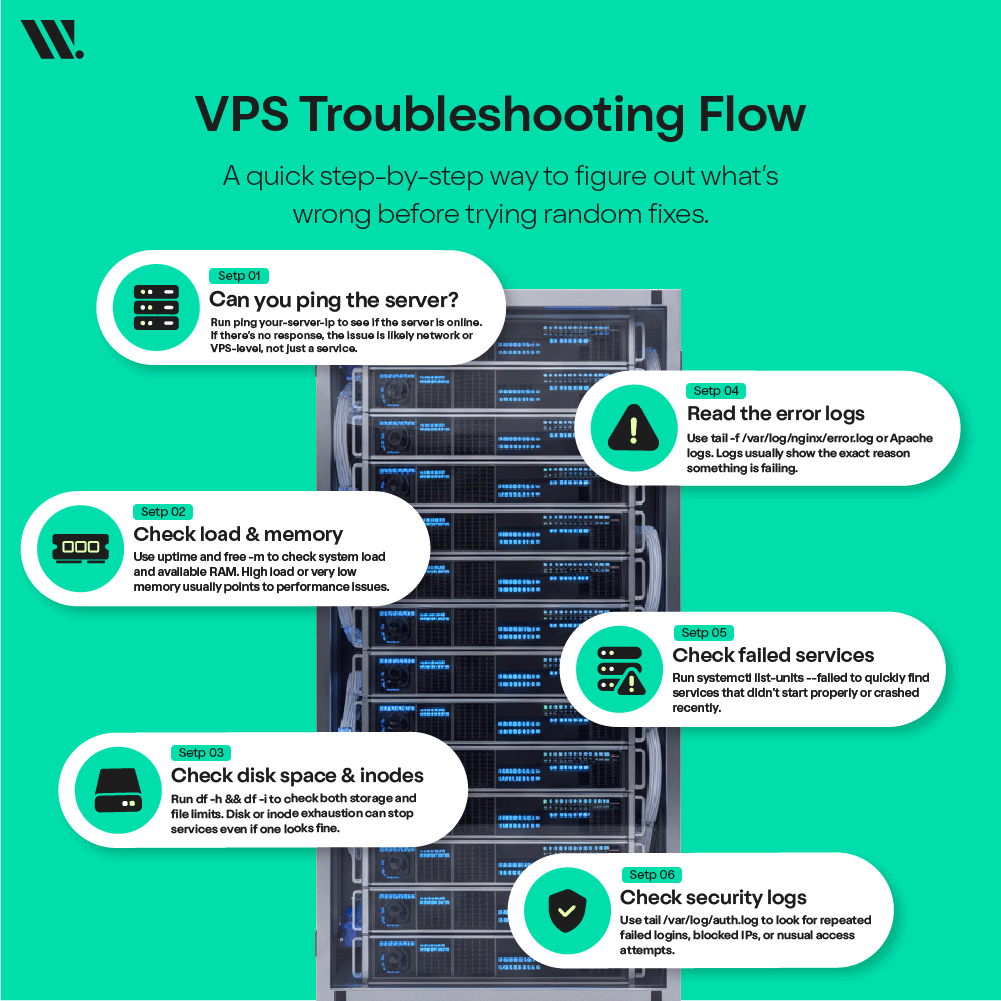
This is probably the most-reported VPS performance issue. Your site loads slowly, SSH responses lag, and the server feels like it's working twice as hard as it should. High CPU usage usually points to one of three things: a process gone rogue, a traffic increase your current plan can't handle, or poorly configured software doing unnecessary work.
According to RamNode's official documentation, on a 2-vCPU VPS, a load average consistently above 2.0 means processes are already waiting in a queue. PHP-FPM worker pileups, especially on WordPress sites with heavy plugins, are a very common trigger for this. Apache misconfigured with too many worker processes for available RAM is another. MySQL running slow queries that lock the CPU while scanning large datasets is a third.
How to fix it:
Run top or htop to see which process is eating CPU. Press P to sort by CPU usage and focus on the %CPU column
Check load averages with uptime. If the numbers are above your core count, you have a backlog building
For Apache, reduce MaxRequestWorkers in the MPM config to fit your RAM. For Nginx, set worker_processes auto and tune worker_connections
Enable the MySQL slow query log with slow_query_log = 1 in /etc/mysql/my.cnf to catch inefficient queries
Count active PHP-FPM workers: ps aux | grep php-fpm | wc -l. If it keeps climbing, you have a worker leak
If nothing obvious shows up in processes, I suggest scanning for malware. Compromised servers silently running crypto miners are more common than people expect
2. RAM Exhaustion and OOM Killer Crashes
When your VPS runs out of RAM, Linux activates the OOM (Out of Memory) Killer, which starts terminating processes to free up space. That's usually when databases crash mid-request, or the web server goes down without warning. You'll see it in logs as an oom-kill event or in journalctl -k as a killed process.
The early warning is high swap usage. Swap is disk space being used as overflow RAM, and it's many times slower. Heavy swap usage means your server is already struggling, not just approaching a limit. Common triggers include MySQL's InnoDB buffer pool set too high, PHP applications with memory leaks, and too many concurrent processes relative to available RAM.
How to fix it:
Run free -m to check RAM and swap. If "available" is under 500MB, you're running low
Use ps aux --sort=-%mem | head -15 to find the top memory consumers
Add or expand swap. I recommend at least 1-2 GB as a baseline for small VPS plans
Lower innodb_buffer_pool_size to around 50-60% of total RAM in /etc/mysql/my.cnf
Reduce PHP-FPM's pm.max_children based on how much RAM each worker actually uses, calculate it with ps --no-headers -o rss -C php-fpm | awk '{sum+=$1} END {print sum/1024 " MB"}'
Check for zombie processes with ps aux | grep 'Z', they don't consume CPU but hold memory references open
3. Disk Space Full and Inode Exhaustion
"No space left on device" is one of the most disruptive VPS hosting errors you'll encounter. Services stop writing logs, databases refuse new entries, and sometimes you can't even SSH in. The twist is that this error can appear even when df -h shows gigabytes free, because the problem might not be space at all. It might be inode exhaustion.
Inodes are how the filesystem tracks individual files. Every file, regardless of size, uses one inode. WordPress cache plugins, mail queue spam, PHP session files, and Docker overlay layers can generate millions of tiny files that exhaust all available inodes while barely touching disk space in gigabytes. When df -i shows IUse% at 100%, that's your actual problem.
For actual disk space, the usual suspects are unrotated log files, APT package caches left over from updates, old database backups sitting in /home, and systemd journal files that were never capped.
How to fix it:
Run df -h and df -i separately; they tell different stories
Find large files: find / -size +500M -type f 2>/dev/null
For inode issues: find / -xdev -printf '%h\n' | sort | uniq -c | sort -rn | head -20 to locate directories with the most files
Clear APT cache: apt clean && apt autoremove
Cap journal size in /etc/systemd/journald.conf: set SystemMaxUse=500M
If the disk still shows full after deleting a large log file, a process still has it open, run lsof | grep deleted and restart that service to release the file handle
I suggest setting up logrotate for every custom log path on your server and confirming it runs daily; most broken logrotate configs are simply missing entries for application-specific logs
4. SSH Connection Failure and Root Access Denial
Getting locked out of your own server is one of the worst VPS experiences. SSH failures come from a short list of causes: your IP got banned by Fail2Ban after too many failed login attempts, a firewall rule is blocking port 22, the SSH daemon crashed, or a misconfigured /etc/ssh/sshd_config was saved, and the service was restarted without testing it first.
Fail2Ban blocking rules are particularly sneaky; the software is doing exactly what it's supposed to do, but if it bans your own IP after you switch networks or mistype a password a few times, you're locked out. Your VPS provider's browser-based console is your way back in when SSH is completely unreachable.
How to fix it:
First step: ping your-server-ip. If it responds, the VPS is up, and SSH is the specific issue
Log into the VPS console from your provider's control panel and run fail2ban-client status sshd
Unban your IP: fail2ban-client set sshd unbanip YOUR.IP.ADDRESS
Check SSH daemon status: systemctl status ssh and journalctl -u ssh -n 50 for error details
Verify firewall rules: ufw status or iptables -L -n | grep 22
If sshd_config has a syntax error, use the console to fix it and run sshd -t to validate before restarting the service
Going forward, I recommend moving SSH to a non-standard port and restricting access to your static IP in the firewall, which dramatically reduces brute-force noise and accidental lockouts
5. DDoS Attacks and Unauthorized Access Attempts
Cloudflare reported blocking an average of 4,870 DDoS attacks per day in 2024, with the largest attack ever recorded hitting 5.6 terabits per second. VPS servers are targets because they're directly internet-facing with IPs and open ports. A volumetric DDoS floods your server with fake traffic until it can't respond to legitimate users. Brute-force login attempts are even more persistent; automated bots continuously hammer SSH, cPanel, and web admin panels around the clock.
Signs of an attack include sudden bandwidth increase, the VPS going unresponsive, CPU hitting 100% with no clear process, or thousands of failed login attempts appearing in /var/log/auth.log. Malware infection often surfaces as unknown processes, unexpected outbound traffic, or your server IP ending up on spam blacklists.
How to fix it:
Install and configure Fail2Ban, which monitors logs and automatically bans IPs after repeated failures
Configure bantime, findtime, and maxretry in /etc/fail2ban/jail.local, don't leave the defaults as-is
For web traffic, I suggest putting Cloudflare or a CDN in front of your server, which hides your VPS IP and absorbs volumetric traffic before it ever reaches you
Switch SSH from password authentication to key-based auth, add PasswordAuthentication no to /etc/ssh/sshd_config after your key is working
Scan for malware: clamscan -r /home --bell -i
For a volumetric DDoS that saturates your bandwidth, contact your hosting provider immediately. Upstream scrubbing can only be activated at the network level, not from inside the VPS
6. DNS Resolution Failure and Network Issues
DNS failures look like your server is down when it's perfectly operational. Common scenarios include migrating to a new VPS IP without updating DNS records, or /etc/resolv.conf on the server itself being misconfigured, so the VPS can't resolve external hostnames. The second one breaks package installs, outbound API calls, and system updates, and it's easy to miss because SSH still works fine while everything else silently fails.
Network latency and packet loss are separate problems. These typically come from congestion at the provider's datacenter or somewhere along the path between you and the server. High latency makes SSH feel sluggish and causes database connections to time out.
How to fix it:
Test DNS from inside your VPS: dig google.com, if it fails, check /etc/resolv.conf
Add reliable DNS servers if needed: nameserver 1.1.1.1 and nameserver 8.8.8.8
Verify your domain's A record: dig +short yourdomain.com A
DNS propagation can take up to 24 hours. Use whatsmydns.net to check global propagation status
Run mtr your-server-ip to trace the network path and pinpoint where packet loss is occurring. Share this output with your provider when opening a support ticket
7. Apache/Nginx Misconfiguration and Service Failures
A 502 Bad Gateway from Nginx means Nginx is running, but the backend service it's trying to reach, PHP-FPM, a Node.js app, or a Python process, is not responding. A 500 from Apache usually means a permissions issue, a broken .htaccess rule, or a PHP error that's being hidden from users but visible in the logs. The logs are always the first place to look, not the last.
PHP version conflicts are common when applications require PHP 8.x but the server still defaults to PHP 7.x, or when a control panel update changes the system default without updating per-site configurations. Systemd service failures happen when a config file has a syntax error, and the service refuses to start after a reboot.
How to fix it:
Check error logs first: tail -f /var/log/nginx/error.log or tail -f /var/log/apache2/error.log
Test config syntax before restarting: nginx -t or apachectl configtest
For 502, check if PHP-FPM is running: systemctl status php8.x-fpm, restart if it crashed
For 403 errors, check file ownership: web server processes run as www-data and need read permissions on the files they serve
Use systemctl list-units --failed to see all failed services at once
I recommend using systemctl reload nginx instead of restart on production servers, reload applies config changes without dropping active connections
Issue | Severity | Common Cause | First Command | Tools | Fix |
High CPU Usage & Slow Performance | High | Runaway process, misconfigured workers, slow MySQL queries, and traffic increase | top / htop | htop, Netdata, Glances, Prometheus | Kill process, tune workers, enable slow query log |
RAM Exhaustion & OOM Crashes | High | MySQL buffer too high, PHP-FPM leak, too many processes | free -m | htop, Netdata, vmstat, Zabbix | Add swap, lower buffer size, reduce workers |
Disk Space Full & Inode Exhaustion | High | Logs not rotated, cache files, APT leftovers | df -h && df -i | ncdu, Glances, Netdata, du | Clean cache, fix logrotate, cap logs |
SSH Connection Failure | High | Fail2Ban block, port blocked, config error | VPS console | Fail2Ban, journalctl | Unban IP, check SSH, fix config |
DDoS & Brute Force Attacks | High | Open ports, weak auth, no protection layer | netstat -tunp | Fail2Ban, Cloudflare, ClamAV | Enable firewall, use CDN, switch to SSH keys |
DNS Resolution Failure | Medium | Wrong DNS, IP change, propagation delay | dig google.com | dig, nslookup, mtr | Fix DNS, update records |
Apache / Nginx Errors (500/502) | Medium | PHP-FPM crash, config error, permissions | tail -f error.log | nginx -t, apachectl, journalctl | Restart service, fix config |
Cron Job & Backup Failures | Low–Med | Wrong paths, no logs, permission issues | journalctl -u cron | crontab, Logwatch | Fix paths, add logs, test jobs |
What Tools Should You Have on Every VPS?

Having the right tools on your VPS makes a big difference in how easily you can manage and troubleshoot issues. Instead of guessing what went wrong, these tools give you clear insights into performance, resource usage, and security activity. They help you spot problems early, before they turn into downtime or data loss.
From monitoring system health to tracking network issues and blocking unwanted access, each tool plays a role in keeping your server stable. Even if your setup is small, using a few reliable tools can save time and avoid repeated fixes. It’s less about having many tools and more about using the right ones consistently.
Final Thoughts
Running a VPS puts you in the driver's seat, which is what most people want until something breaks and they're staring at a terminal at 2 AM. The issues above account for the overwhelming majority of what actually goes wrong in day-to-day VPS management. Work through them methodically, start with the logs, and don't skip checking both disk space and inode usage separately.
If you're spending more time troubleshooting your server than building what the server is supposed to run, it might be worth looking at a managed VPS setup instead. At Websouls, we offer a free VPS consultation to figure out what's going wrong, no pressure, no pitch. And if you'd rather hand off the server management entirely, our managed VPS hosting covers configuration, security, updates, and troubleshooting so you can focus on everything else.
FAQs on Common VPS Hosting Issues & How to Fix Them
1. How often should a VPS server be monitored?
A VPS should be monitored all the time. Real-time monitoring helps catch issues like CPU spikes or memory leaks before they affect your site. Even a simple uptime alert system can save hours of downtime.
2. Can a VPS slow down over time without any changes?
Yes, it can. Logs grow, cache builds up, and background services keep running. Over time, this leads to slow VPS performance even if nothing new was installed.
3. Is rebooting a VPS a good fix for server issues?
Rebooting can temporarily fix issues like high memory usage or stuck processes, but it does not solve the root cause. If problems come back after a reboot, deeper troubleshooting is needed.
4. How do I know if I need to upgrade my VPS plan?
If CPU, RAM, or disk usage stays high even after optimization, it usually means your current plan is not enough. Frequent slowdowns during traffic increases are another clear sign.
5. Can VPS issues affect SEO or search rankings?
Yes. Slow load times, downtime, and server errors can impact user experience and search rankings. Search engines prefer fast and stable websites.
6. What is the safest way to test changes on a VPS?
Use a staging environment or test server before applying changes to your live VPS. This helps avoid breaking your main site due to configuration mistakes.
7. Do VPS providers handle security automatically?
Not always. Most unmanaged VPS plans leave security setup to you. This includes firewall rules, updates, and protection against attacks.
8. What is managed VPS, and when should I consider it?
Managed VPS means the hosting provider handles setup, updates, security, and troubleshooting. It’s useful if you don’t want to deal with technical server management yourself.