.png&w=1920&q=75)
Key Takeaways
ERR_CONNECTION_TIMED_OUT means your browser could not connect to the website server in time.
The issue usually comes from slow internet, DNS problems, browser cache, or network settings.
Simple fixes like clearing Chrome cache, restarting the router, or changing DNS settings often solve the problem.
The error can appear on desktop, Android, or other mobile devices.
If the error keeps showing, it may be caused by firewall rules, proxy settings, or server response delays.
Have you ever opened a website and suddenly saw “This site can’t be reached, ERR_CONNECTION_TIMED_OUT” on Chrome? It is one of the most common connection errors on the internet.
This error appears when the browser waits for a server response, but the connection takes too long and fails.
Internet connectivity problems are also very common worldwide. According to global internet data from the International Telecommunication Union (ITU), over 6 billion people use the internet today, which means millions of users face browser errors every day.
Browsers like Chrome depend on a stable internet, DNS resolution, and server response time to load a webpage. When one of these fails, Chrome may show errors like:
err_connection_timed_out
Net::err_connection_timed_out
But these errors are usually easy to fix. In this guide, you will learn why the error happens and how to solve it step by step.
What is ERR_CONNECTION_TIMED_OUT?
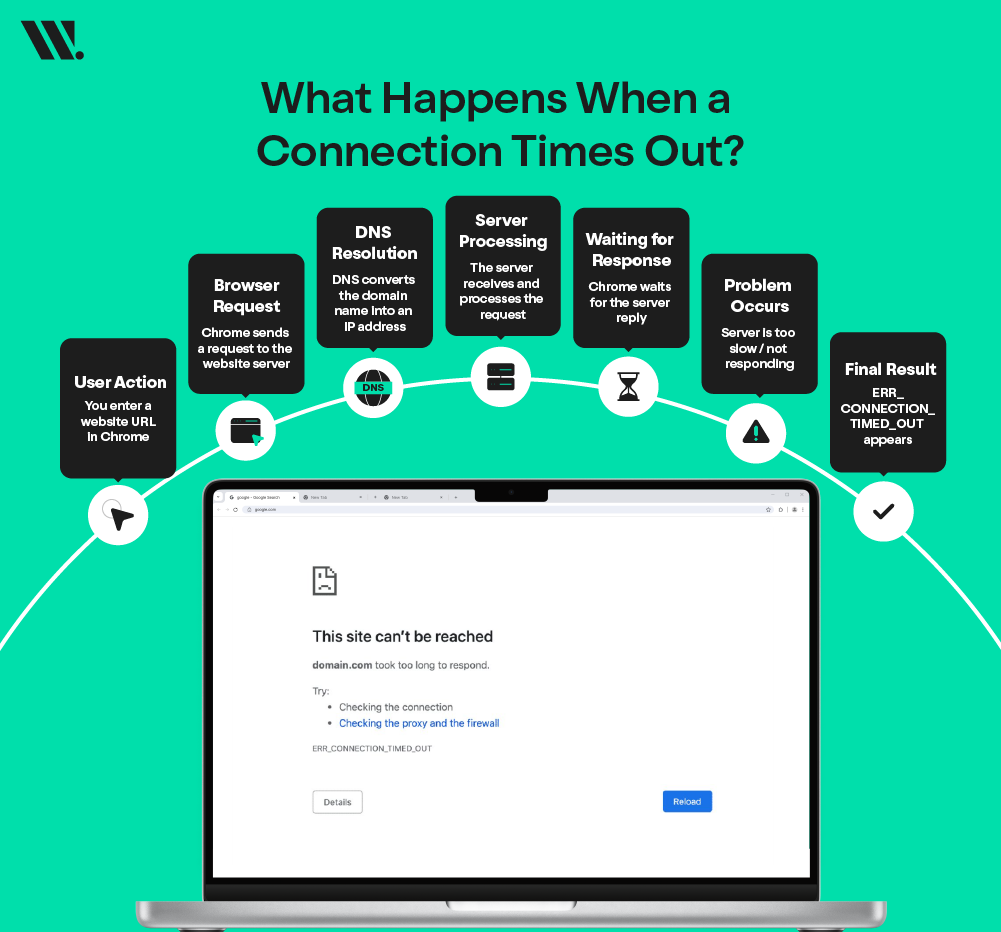
ERR_CONNECTION_TIMED_OUT is a browser error that appears when a website server does not respond within the allowed time.
When you open a website, Chrome sends a request to the server that hosts that site. If the server takes too long to reply, Chrome stops the process and shows the timeout error.
This error can happen for several reasons, such as:
Slow internet connection
Incorrect DNS configuration
Browser cache problems
Network restrictions or firewall blocks
The error can appear on:
Desktop browsers
Smartphones
Tablets
Why ERR_CONNECTION_TIMED_OUT Error Happens
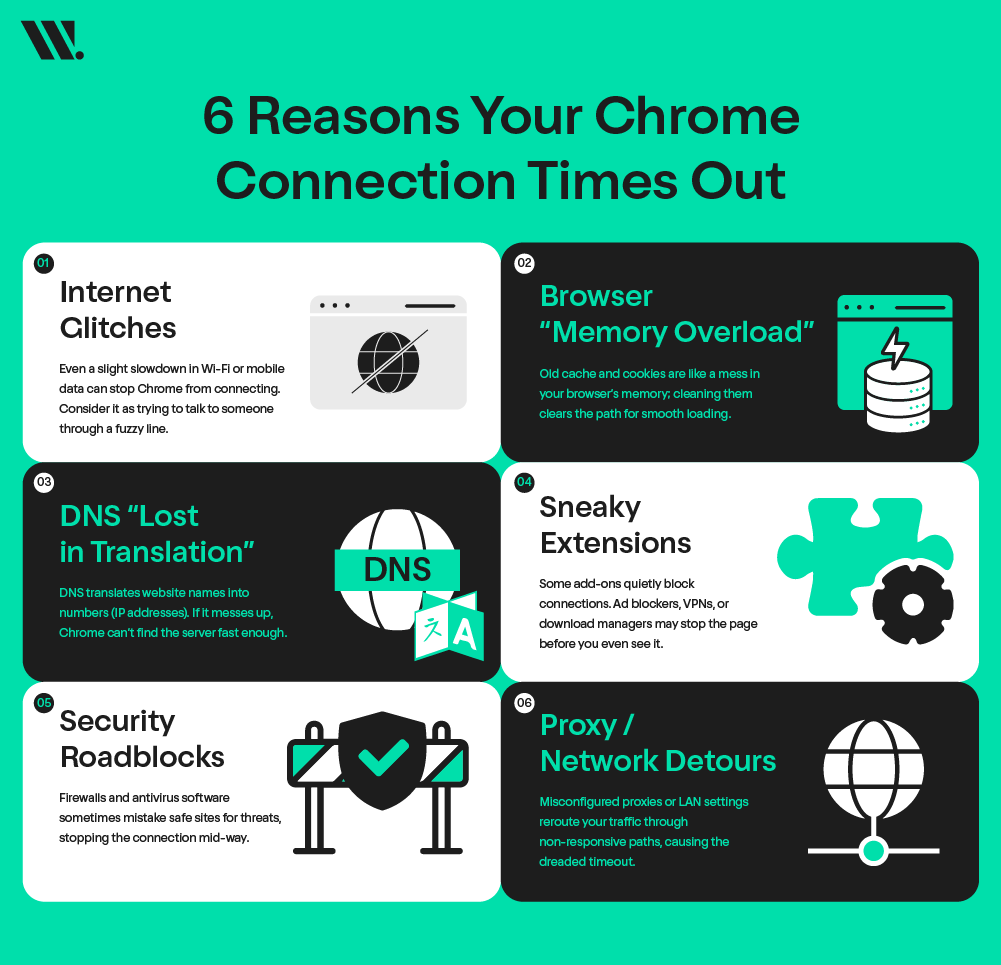
Several technical issues can cause this error. Below are the most common reasons.
1. Slow or Unstable Internet Connection
If the internet connection is slow, the browser may fail to receive a response from the website server in time. Chrome then stops the request and shows the timeout error. Checking your internet speed or restarting your router often helps.
2. Corrupted Browser Cache or Cookies
Browsers store temporary files to load websites faster. Over time, this data can become outdated or corrupted. When that happens, Chrome may fail to load the website correctly. Clearing the cache and cookies can solve this issue.
3. DNS Server Problems
DNS converts a website name into an IP address. If the DNS server does not respond properly, Chrome cannot find the website. Changing to a public DNS like Google DNS (8.8.8.8) often fixes the problem.
4. Browser Extensions Blocking Connection
Some browser extensions interfere with how webpages load. Ad blockers, VPN extensions, or download managers may stop Chrome from connecting to the website server. Disabling extensions can help identify the issue.
5. Firewall or Antivirus Restrictions
Security software sometimes blocks connections it believes are unsafe. Firewalls or antivirus programs may prevent Chrome from connecting to a website, which results in a timeout error.
6. Proxy or Network Configuration Issues
Incorrect proxy settings can block website connections. If Chrome tries to route traffic through a proxy server that is not responding, the connection request may time out.
How to Resolve the ERR_CONNECTION_TIMED_OUT Error
Connection timeout errors usually appear when the browser cannot complete communication with the website server. The problem can come from the internet connection, browser settings, DNS configuration, or security software.
The solutions below are the most reliable ways to fix err_connection_timed_out and net::err_connection_timed_out errors in Chrome. Start with the simple checks first, then move to the technical fixes if the issue continues.
1. Check Your Internet Connection
Start with the basic network check before changing any browser settings. If the internet connection is unstable or slow, Chrome may not receive a response from the website server in time, which triggers the timeout error. Simple things like router glitches or temporary network congestion can also cause this issue.
What to do:
Restart your Wi-Fi router and modem
Try opening another website in Chrome
Check internet speed using an online speed test
Switch between Wi-Fi and mobile hotspot if possible
If multiple websites fail to load, the issue is likely related to your internet connection rather than the website itself.
2. Clear Chrome Cache and Cookies
Chrome stores temporary files called cache and cookies to help websites load faster. Over time, these files may become outdated or corrupted, which can prevent websites from loading properly. Clearing the cache removes old data and forces Chrome to download fresh website files again.
Steps:
Open Chrome
Click the three-dot menu in the top right corner
Go to Settings → Privacy and Security
Click Clear browsing data
Select Cookies and other site data
Select Cached images and files
Click Clear data
After clearing the data, restart the browser and try loading the website again.
3. Open the Website in Incognito Mode
Incognito mode runs Chrome without stored cache, cookies, or most extensions. This makes it useful for identifying browser-related problems. If the website works normally in incognito mode, the issue is likely caused by cached files, extensions, or browser settings.
Steps:
Press Ctrl + Shift + N on your keyboard
A new incognito window will open
Enter the website URL and try loading the page again
If the page loads successfully, clearing browser data or disabling extensions should solve the problem.
4. Disable Chrome Extensions
Browser extensions add extra features to Chrome, but some of them can interfere with website connections. Ad blockers, VPN extensions, or security add-ons sometimes block requests that the browser sends to a server. Disabling extensions helps identify if one of them is causing the err_connection_timed_out issue.
Steps:
Type chrome://extensions in the address bar
Press Enter to open the extensions page
Disable all extensions temporarily
Refresh the website
If the website loads correctly after disabling them, enable extensions one by one to find the one causing the problem.
5. Flush DNS Cache
DNS cache stores records of website addresses your computer has recently visited. If the stored information becomes outdated, your system may try connecting to the wrong server address. Flushing the DNS cache removes these old records and forces the system to retrieve fresh DNS information.
Steps (Windows):
Open Command Prompt as Administrator
Type the command below and press Enter
ipconfig /flushdns
This clears stored DNS records and refreshes your system’s network connection.
6. Change DNS Server
Sometimes the DNS server provided by your internet service provider may be slow or unreliable. Switching to a public DNS service can improve connection speed and reduce timeout errors. Google Public DNS is commonly used because it is fast and stable.
Example DNS settings:
Preferred DNS
8.8.8.8
Alternate DNS
8.8.4.4
Changing the DNS server can help Chrome resolve website addresses faster and prevent connection delays.
7. Disable Proxy Settings
A proxy server acts as an intermediary between your browser and the internet. If the proxy server is misconfigured or unavailable, Chrome may fail to connect to the destination website. Disabling proxy settings allows the browser to connect directly to the website server.
Steps:
Open Chrome Settings
Scroll to System settings
Click Open proxy settings
Turn off the proxy server option
After disabling the proxy, reload the website and check if the problem is resolved.
8. Temporarily Disable Firewall or Antivirus
Firewall and antivirus programs protect your device from unsafe websites and malicious traffic. However, in some cases, they may mistakenly block legitimate connections. This can prevent Chrome from reaching the website server and cause a timeout error.
You can test this by temporarily disabling the firewall or antivirus protection and opening the website again. If the website loads normally after disabling security software, add the browser or website to the trusted list so it does not get blocked again.
9. Check LAN Settings
Incorrect Local Area Network (LAN) settings can sometimes block Chrome from connecting to a website. This usually happens when a proxy is enabled automatically or when network settings are changed by software or a VPN.
If the LAN configuration is incorrect, the browser may send requests through a server that is not responding. This can trigger the err_connection_timed_out.
Steps to check LAN settings (Windows):
Open Control Panel
Go to Network and Internet
Click Internet Options
Open the Connections tab
Click LAN settings
Uncheck Use a proxy server for your LAN (if it is enabled)
Make sure Automatically detect settings is checked
Click OK and restart Chrome
After updating the settings, reload the website to see if the issue is resolved.
Fixing ERR_CONNECTION_TIMED_OUT on Android or Mobile
If the error appears as err_connection_timed_out android or err_connection_timed_out in mobile, the problem is usually related to network settings or the mobile browser cache. Mobile networks sometimes change IP addresses frequently, which may interrupt the connection between the browser and the server.
Try these quick fixes:
Restart the mobile phone
Turn airplane mode on and off
Switch between Wi-Fi and mobile data
Clear Chrome app cache in settings
Update Chrome from the app store
Reset network settings if the issue continues
These steps usually restore the connection and resolve most mobile browser timeout errors.
Trouble with ERR_NAME_NOT_RESOLVED? Learn how to fix it
Final Thoughts
The ERR_CONNECTION_TIMED_OUT error can feel frustrating, especially when you need to access a website quickly. In most cases, the problem is caused by simple network or browser issues rather than serious technical failures.
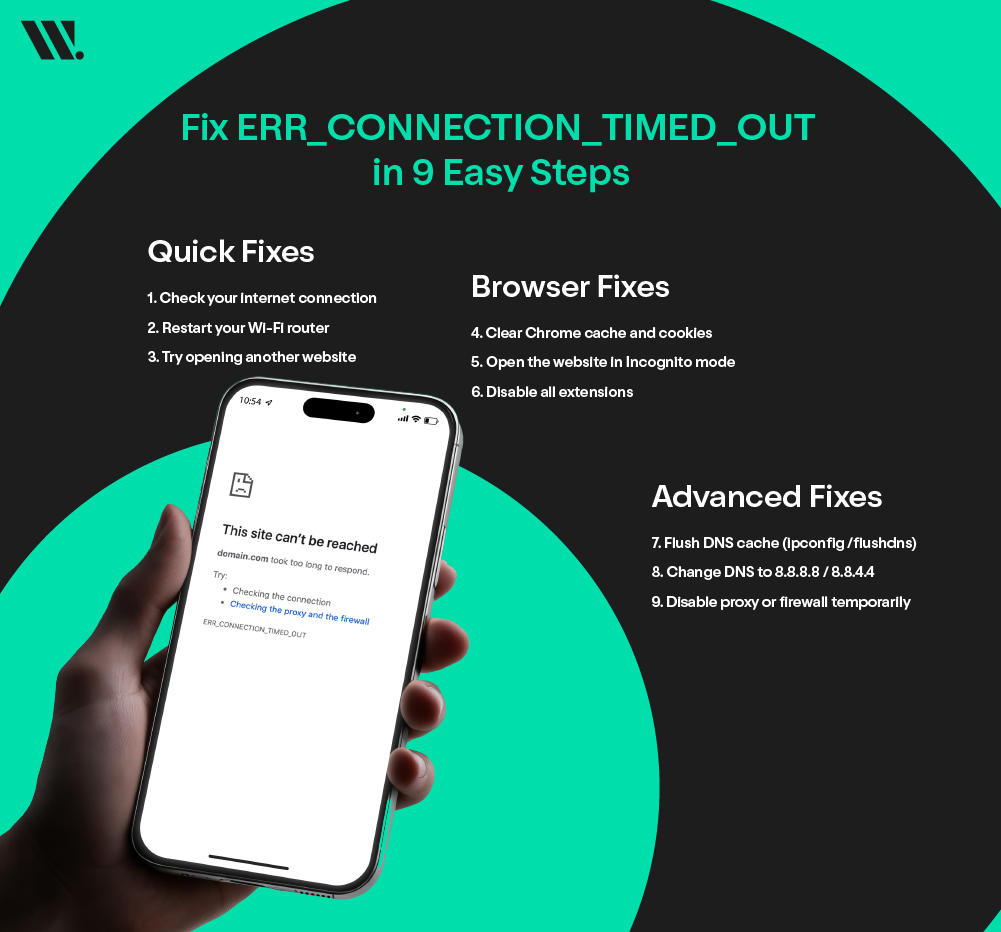
Start with the basic fixes:
Check the internet connection
Clear browser cache
Disable extensions
Change DNS settings
In many cases, these steps solve the issue within minutes. If the problem continues, it may be related to some network configuration or server settings.
At Websouls, we offer assistance if you need expert help diagnosing connection issues like ERR_CONNECTION_TIMED_OUT. Our team can help identify browser, DNS, or network problems and guide you toward the right fix.
A stable and properly configured setup helps reduce connection errors and ensures websites remain accessible without interruptions.
FAQs about ERR_CONNECTION_TIMED_OUT
1. What does ERR_CONNECTION_TIMED_OUT mean in a web browser?
It means the browser tried to connect to a website, but the server did not respond within the expected time. Chrome stops the request and shows this error when the connection takes too long.
2. Why does net::ERR_CONNECTION_TIMED_OUT appear when opening a website?
This error occurs when network issues, slow DNS response, browser cache problems, firewall restrictions, or proxy misconfigurations prevent the browser from reaching the server on time.
3. Can DNS problems cause ERR_CONNECTION_TIMED_OUT errors?
Yes. If your DNS server is slow or misconfigured, the browser cannot find the website’s server quickly, causing a timeout error. Switching to a reliable public DNS like Google DNS (8.8.8.8, 8.8.4.4) often resolves the issue.
4. How can I fix ERR_CONNECTION_TIMED_OUT on desktop Chrome?
Try these steps:
Restart your router and check your internet connection
Clear Chrome cache and cookies
Disable extensions that may block connections
Flush DNS cache (ipconfig /flushdns)
Change DNS servers
Check proxy and LAN settings
Temporarily disable the firewall or antivirus if they block connections.
5. Is ERR_CONNECTION_TIMED_OUT related to server or hosting issues?
Sometimes. If a website’s server is slow, overloaded, or unresponsive, users may see this error. However, most ERR_CONNECTION_TIMED_OUT errors are caused by local network or browser issues rather than the server.
6. How can website owners prevent net::ERR_CONNECTION_TIMED_OUT errors for users?
Use reliable hosting and maintain server uptime
Optimize server response times and database queries
Configure firewall and security settings correctly
Ensure DNS settings are accurate and responsive