
Key Takeaways
➔ ERR_NAME_NOT_RESOLVED happens when your browser can’t resolve a website’s domain name to an IP address, often due to DNS issues.
➔ Common causes include problems with your internet connection, DNS server, or cached data.
➔ To fix it, try checking your connection, restarting your router, clearing your cache, flushing your DNS cache, and changing DNS servers (e.g., Google or Cloudflare).
➔ Device-specific solutions may vary, but most steps are similar across Windows, macOS, Android, and iOS.
➔ To prevent future issues, use reliable DNS providers, enable DNSSEC, and set proper TTL values.
If you’ve ever tried to open a website and suddenly saw something like:
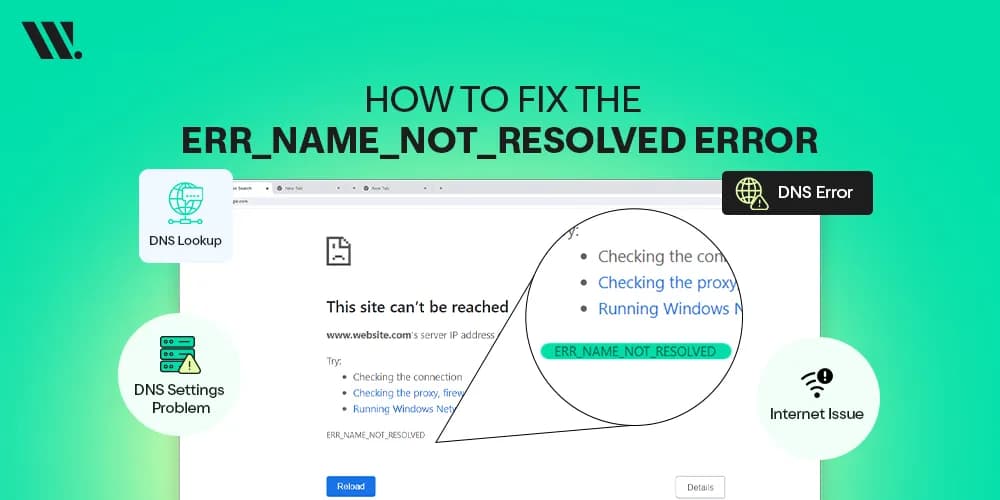
“This site can’t be reached, ERR_NAME_NOT_RESOLVED.”
We know how irritating it feels. One moment you’re about to check your email, watch a video, or finish a task, and the next, your browser just gives up on you with that cryptic message. It’s like the internet decided to take a break just when you needed it most.
You’re not the only one who deals with this. DNS problems, which are behind this error, are some of the most frequent issues on the internet. Even large services like Cloudflare and Google sometimes face DNS disruptions that leave people stuck staring at error screens. But don’t worry, that doesn’t mean the internet is broken forever. Most of the time, this issue can be fixed easily with a few simple steps.
In this guide, we’ll discuss what the ERR_NAME_NOT_RESOLVED error actually means, how it works, its common causes, and steps to fix.
What is the ERR_NAME_NOT_RESOLVED Error?

Let’s start with the basics.
Whenever you type a website name like example.com in your browser, your device needs to convert that name into a numerical address computers understand, an IP address.
If, for some reason, your device cannot make that translation, your browser will tell you something like:
ERR_NAME_NOT_RESOLVED
This basically means your browser asked, “Hey, where’s this website?” and DNS (the system that answers that question) couldn’t tell it where that website lives.
You might also see this error with a code like –105 in some browsers, but it’s all the same issue. It’s your system saying:
“I heard the name, but I can’t find its address.”
It doesn’t mean the website is gone forever; usually, something on your side or in your network is blocking the path.
How Domain Name System (DNS) Works
To understand what’s going wrong, we need to understand DNS first. Consider the internet like a giant city. Websites have names like street names, “example.com”. But computers don’t use names; they use numbers like “192.0.2.1” to find places.
DNS stands for Domain Name System, and it works like an internet phone book.
Here’s the basic process:
You type a web address into your browser.
Your device asks a DNS server: “Hey, what’s the IP for this name?”
The DNS server looks it up and sends back the number.
Your browser uses that number to connect to the website.
So when DNS fails, your browser can’t continue, and you see errors like ERR_NAME_NOT_RESOLVED.
DNS servers are usually provided by:
● Your internet service provider (ISP)
● Or a third‑party DNS service (like Google DNS or Cloudflare DNS)
If that lookup fails because of settings, bad connection, or cached errors, then you get the name_not_resolved message.
Why ERR_NAME_NOT_RESOLVED Happens

This error doesn’t happen randomly; there are common reasons it shows up. Some are simple, some are slightly trickier.
Here’s what usually triggers it:
1. Internet Connection Issues
If your internet is shaky or not connected at all, your device simply can’t ask DNS for an answer in the first place.
2. DNS Server Problems
If the DNS server you’re using is slow, overloaded, or down, it won’t answer in time, causing the lookup to fail.
3. Incorrect DNS Configuration
Sometimes your device or router is set to the wrong DNS address, so it keeps asking a server that doesn’t respond.
4. Browser Cache or DNS Cache Issues
Your system remembers past lookups in a cache. Old or incorrect cache entries can cause your device to think that a site doesn’t exist anymore.
5. VPN or Proxy Conflicts
If you use a VPN or proxy, it may interfere with how DNS works or send requests to the wrong place.
6. Firewall or Antivirus Restrictions
Security software sometimes blocks DNS requests, considering they are unsafe, even when they aren’t.
7. Incorrect Hosts File Entries
Your computer’s hosts file can override DNS results. If there’s a wrong entry here, your browser may be pointed to nowhere.
8. Website or Hosting DNS Misconfiguration
In some rare cases, the website itself may have wrong DNS records on its hosting side. That means even if your settings are perfect, the lookup fails because the destination is broken.
Start by checking your connection; a lot of problems start there.
How to Fix ERR_NAME_NOT_RESOLVED

Now let’s fix it.
These steps are arranged from easiest to most advanced. Try them one at a time, and most people get past this error by step 4 or 5.
1. Check Your Internet Connection
Before anything else, make sure your device is actually online.
• Try opening another website
• Try opening a different browser
• If nothing loads, try turning Wi‑Fi off and on
• Test mobile data or another network
If nothing works, you may need to restart your modem or talk to your ISP.
2. Restart Your Router and Device
This sounds simple, but it often works.
• Turn off your router
• Wait about 30 seconds
• Turn it back on
• Restart your computer or phone
This clears temporary network glitches.
3. Clear Browser Cache
Old stored files in your browser can mess up DNS lookups.
In Chrome:
• Go to Settings → Privacy and security → Clear browsing data
• Choose “Cached images and files.”
• Hit Clear
This removes old junk that may be confusing your browser.
4. Flush DNS Cache
Your system also saves DNS lookups. Flushing it forces a fresh lookup.
On Windows:
Open Command Prompt as Administrator
Type: ipconfig /flushdns
Press Enter
On macOS:
Open Terminal
Type: sudo dscacheutil -flushcache
sudo killall -HUP mDNSResponder
Press Enter
This clears any stale DNS records and allows your computer to request fresh ones from the server.
5. Change DNS Servers
A lot of DNS failures happen because the DNS server you're using isn’t responding.
You can switch to public DNS servers that are fast and reliable.
Common Good DNS Servers:
Provider | Primary | Secondary |
8.8.8.8 | 8.8.4.4 | |
Cloudflare | 1.1.1.1 | 1.0.0.1 |
On Windows:
Go to Control Panel → Network and Internet → Network and Sharing Center
Click Change adapter settings
Right‑click your connection → Properties
Click Internet Protocol Version 4 (TCP/IPv4) → Properties
Select “Use the following DNS server addresses.”
Enter the DNS addresses above and save
On phones or tablets, this is usually found under
Wi‑Fi settings → Modify network → Advanced → DNS.
These public DNS services are managed by big companies and generally respond faster than ISP DNS.
6. Disable VPN or Proxy
If you use a VPN or a proxy app:
➔ Turn it off temporarily
➔ Try loading the website again
If it works without the VPN, then your VPN may be blocking DNS queries or redirecting them incorrectly.
7. Turn Off Firewall or Antivirus Temporarily
Some security programs block DNS requests by mistake.
➔ Turn off your antivirus/firewall temporarily
➔ Try loading the site
If it works, go into the settings and add an exception for DNS traffic instead of keeping security off forever.
8. Check and Edit the Hosts File
Your operating system has a file that can override DNS.
Windows Hosts File:
C:\Windows\System32\drivers\etc\hosts
Open it with Notepad (as Administrator) and look for any strange lines pointing domains to IPs. Remove anything related to the site causing problems.
On macOS or Linux, the hosts file is at:
/etc/hosts
Wrong entries here will break name resolution.
9. Reset Network Settings
If nothing else works, resetting your network settings often clears configuration issues.
Windows:
Settings → Network & Internet → Reset network
On mobile devices:
Settings → System → Reset network settings
Just know this will forget Wi‑Fi passwords and VPN settings, so be ready to set those up again.
Case Study: Fixing ERR_NAME_NOT_RESOLVED After Domain Renewal
Client Scenario
A client running a corporate website reported that their site suddenly became inaccessible after renewing their domain. Users received the following errors:
DNS_PROBE_FINISHED_NXDOMAIN
ERR_NAME_NOT_RESOLVED
Email services were also not working.
Issue Investigation
After checking the domain status, it was discovered that the domain registrar had automatically reset the nameservers to default parking nameservers during the renewal process:
The website hosting server was fully operational, but the domain could not resolve to the correct IP address.
Root Cause
The client’s original DNS records were hosted on:
ns1.websouls.com
ns2.websouls.com
After renewal, the domain stopped pointing to those nameservers, causing:
● No DNS zone loading
● Website records disappearing
● Browsers returning ERR_NAME_NOT_RESOLVED
Solution Applied
The nameservers were updated back to the correct values:
ns1.websouls.com
ns2.websouls.com
Then the team:
● Verified DNS propagation globally
● Cleared local DNS cache
● Tested website resolution from multiple regions
● Confirmed website and email services were restored
Tools Used
Purpose | Tool |
DNS propagation testing | |
DNS diagnostics | |
Website monitoring |
Results After Fix
Before | After |
ERR_NAME_NOT_RESOLVED | Website working normally |
Domain parking page showing | Correct website loading |
Emails bouncing/failing | Email services are fully restored |
DNS not resolving | Proper DNS propagation confirmed |
Case Study Takeaway
The error was caused entirely by the domain renewal process silently replacing the correct nameservers with parking nameservers. The hosting server was never down. Restoring the correct DNS configuration immediately resolved the website and email outage, with no code changes needed.
ERR_NAME_NOT_RESOLVED on Different Devices
This error looks similar on every device, but the fixes vary slightly depending on what system you’re using.
On Windows
You’ll often see it in Chrome as:
ERR_NAME_NOT_RESOLVED or –105
Windows has built‑in tools like Network Troubleshooter that can help diagnose DNS problems, too:
Settings → Update & Security → Troubleshoot → Internet Connections
Additionally, you can use Command Prompt for flushing DNS and reset commands. (Check the Official Microsoft DNS troubleshooting guide)
On macOS
Sometimes, the DNS cache gets stubborn on Mac.
➔ Open Terminal
➔ Run flush DNS commands (shown above)
➔ Then change the DNS in:
System Settings → Network → Details → DNS
(Check Apple’s official guide on changing DNS)
If you’re on Wi‑Fi, try forgetting the network and reconnecting.
On Android
Android also shows the name not resolved as ERR_NAME_NOT_RESOLVED or –105.
Try:
➔ Clear Chrome cache:
Settings → Apps → Chrome → Storage → Clear cache
➔ Switch to private DNS (Settings → Network & Internet → Private DNS)
➔ Try public DNS like Cloudflare’s:
hostname: 1dot1dot1dot1.cloudflare-dns.com
If that doesn’t work, restart the phone.
On iPhone (iOS)
Toggle Airplane Mode on/off
Go to Settings → Wi‑Fi → (i) → Configure DNS → Manual
Add 8.8.8.8 and 1.1.1.1 as DNS
Reset network settings if needed:
Settings → General → Reset → Reset Network Settings
(Check Apple’s guide on DNS settings)
ERR_NAME_NOT_RESOLVED vs Other DNS Errors
Sometimes the error messages sound similar but mean different things.
Here’s a helpful comparison:
Error Code | Meaning | Common Causes | Fixes |
ERR_NAME_NOT_RESOLVED | The browser can’t get an IP address for the domain | DNS lookup failure, bad DNS, cache issues | Flush DNS, change servers, clear cache |
NXDOMAIN | The domain doesn’t exist | Typo in URL, expired domain | Check spelling, verify domain registration |
DNS_PROBE_FINISHED_NXDOMAIN | DNS probe ended with no address | Similar to NXDOMAIN, Chrome’s version | Check domain settings, fix DNS |
➔ ERR_NAME_NOT_RESOLVED usually means your system couldn’t talk to DNS properly.
➔ NXDOMAIN means DNS did talk to a server, but that server said, “This domain doesn’t exist.”
Knowing this helps you troubleshoot faster without confusion.
How to Prevent ERR_NAME_NOT_RESOLVED in the Future
Fixing it once is good. Preventing it from coming back is even better. Here’s what you can do:
Use Reliable DNS Providers
Don’t always depend on your ISP’s DNS; they can be slow or have outages.
Ask yourself:
● Does this DNS provider have good uptime?
● Is it known for speed and reliability?
● Does it support security features?
● Can it handle heavy traffic?
Good options include:
● Google DNS (8.8.8.8 / 8.8.4.4)
● Cloudflare DNS (1.1.1.1 / 1.0.0.1)
If you’re hosting a website, you can also use DNS provided by trusted hosting companies that ensure low latency and high uptime.
Monitor DNS and Website Uptime
Use tools that alert you when DNS fails or your site goes offline. This lets you fix issues before you notice them.
Regular DNS Audits
Check your DNS records from time to time:
● Are all records correct?
● Do any entries look outdated?
● Are name servers still valid?
Tools for DNS Audits
Tool | Purpose / What It Does | Platform |
nslookup | Queries DNS servers to get IP addresses for domain names. Helps check if DNS resolution is working. | Windows, macOS, Linux |
dig | An advanced DNS lookup tool that provides detailed DNS information (A, CNAME, MX, TXT records). Useful for troubleshooting propagation issues. | macOS, Linux, Windows (via BIND tools) |
ping | Test connectivity to a website or server. Can check if the server is reachable over the network. | Windows, macOS, Linux |
tracert / traceroute | Shows the path your request takes to reach a server. Helps detect where the connection is failing. | tracert (Windows), traceroute (macOS/Linux) |
whois | Retrieves domain registration and DNS information. Useful to verify if a domain is active and correctly registered. | Online tools, Linux/macOS, Windows (via third-party apps) |
ipconfig / ifconfig | Displays current IP configuration, DNS servers, and network adapter info. Can also flush DNS cache (Windows: ipconfig /flushdns). | ipconfig (Windows), ifconfig (macOS/Linux) |
host | Simple DNS lookup tool to find the IP address of a domain. Shows specific record types like A, MX, and CNAME. | macOS, Linux |
mtr (My Traceroute) | Combines ping and traceroute to provide real-time network diagnostics. Helps identify network problems along the path. | Linux, macOS, Windows (via WinMTR) |
dig +trace | An advanced dig command that traces the path of DNS resolution from root servers to authoritative servers. Useful for complex DNS issues. | macOS, Linux, Windows (via BIND tools) |
Online DNS Lookup Tools | Websites like MXToolbox, DNSChecker, or Pingdom provide quick DNS checks, propagation info, and server health reports. | Browser-based |
Proper DNS Configuration Best Practices
To make sure your DNS setup runs smoothly and securely, it’s important to follow best practices. Correct DNS configurations not only prevent issues like ERR_NAME_NOT_RESOLVED, but they also improve performance, reliability, and security for your website and users. A little attention to detail can save a lot of headaches down the road. Here are some key practices to follow when configuring your DNS:
Set proper TTL (Time‑to‑Live) values: TTL defines how long DNS records are cached. A reasonable TTL ensures updates are applied quickly while reducing the number of DNS queries. A higher TTL (like 24 hours) is fine for static records, while shorter TTLs (like 5-10 minutes) are helpful for records that change frequently.
Use redundant DNS servers: Always set up at least two DNS servers (primary and secondary) to make sure your domain remains accessible if one server fails. Having multiple servers ensures higher availability and prevents downtime.
Enable DNSSEC for security: DNS Security Extensions (DNSSEC) adds an extra layer of protection by preventing attackers from tampering with DNS records. Enabling DNSSEC helps make sure that your domain’s records are signed and validated before being used.
Avoid overly short TTL unless you know what you’re doing: While it may seem tempting to set very short TTL values for faster updates, doing so can create unnecessary load on your DNS servers. Short TTLs should be used with caution, especially if you’re unsure how it affects your overall system.
By following these simple DNS configuration tips, you can minimize errors and improve the stability of your online presence. Keeping things clean and properly managed prevents those annoying DNS issues from coming back to bite you later.
When to Contact Your ISP or Hosting Provider
If you’ve tried everything above and the error is still there, don’t wait, reach out.
Contact your ISP if:
➔ All websites show the error
➔ Changing DNS settings doesn’t help
➔ Your modem/router seems fine, but DNS still fails
Contact your hosting provider if:
➔ Only one specific site shows this error
➔ You see the error only when trying to reach your own website
➔ You suspect DNS records at the host are misconfigured
When you contact support:
➔ Tell them the exact error message
➔ Explain what steps you have tried
➔ Mention which devices and networks are affected
➔ This saves time and gets you a faster solution.
Final Thoughts
Seeing ERR_NAME_NOT_RESOLVED pop up can be stressful, especially if you’re trying to work, study, or run a business online. But most of the time, this error is just a DNS issue that you can fix with a few simple steps.
From clearing cache to changing DNS servers to device‑specific changes, you now have all the tools you need to handle this like a pro.
And if you’re running a website and need help setting up DNS, domain, or hosting settings, Websouls offers support to get everything running smoothly. Reach out and let us help you avoid these errors in the future.
FAQs for the ERR_NAME_NOT_RESOLVED Error
1. What is DNS, and why is it important?
DNS is a system that translates website names into IP addresses. Without it, your browser can't find websites, causing errors like ERR_NAME_NOT_RESOLVED.
2. Does ERR_NAME_NOT_RESOLVED affect all browsers?
Yes, while common in Chrome, this error can appear in other browsers (Firefox, Edge) if DNS settings are misconfigured or the server is down.
3. Can a website’s DNS server cause this error?
Yes, if a website’s DNS records are incorrect or the server is down, it can cause this error for everyone.
4. Is it safe to clear the DNS cache and reset network settings?
Yes, clearing the DNS cache and resetting network settings are safe actions that can resolve many DNS-related issues.
5. How do I know if the issue is on my side or the website’s?
Use tools like MXToolbox to check if the website’s DNS records are functioning. If it works for others, the issue is likely on your side.